An approval flow, narrated: why each step exists, and where it breaks
Almost every environment I've worked in has some version of this flow. An expense claim, a leave request, a purchase order: someone submits something, an amount or a role decides who has to approve it, and if that person goes quiet, nothing happens until someone notices. It's the flow every organisation eventually builds, and it's rarely documented past the day it shipped.
The flow, end to end
An expense claim comes in. If it's under a set amount, it goes straight to the submitter's manager. Over that amount, it goes to the finance director instead. Whoever approves it triggers an update and a notification. Whoever doesn't respond within 48 hours triggers a reminder, not a decision, because auto-approving a stale request is a worse failure mode than a slow one.
View as Mermaid (copyable)
flowchart LR
    A[Claim submitted] --> B{Over threshold?}
    B -->|yes| C[Finance director approves]
    B -->|no| D[Manager approves]
    C --> E{Response within 48h?}
    D --> E
    E -->|no| F[Send reminder to approver]
    F --> E
    E -->|approved| G[Update record, notify submitter]
    E -->|rejected| H[Update record, notify with reason]
Power Automate ships with a gallery of ready-made approval templates, and Microsoft's own guidance on getting started with approvals lists using one of these as the first option, before building from scratch. They get you a working approval fast. What they don't typically include is a threshold branch, an escalation running alongside the approval, or a check for whether the approver's actually around, and that gap is what this post is actually about.
Step by step: what each part does and why
1. The trigger
The trigger is Dataverse's When a row is added, modified, or deleted trigger, configured for Added only, on the Expense Claims table. This matters more than it looks: triggering off the record rather than a form submission means anything that creates a valid claim (a mobile app, a bulk import, a future integration) starts the same approval, instead of the logic living inside one form.
2. The threshold condition
One condition checks the claim amount against a fixed value. The value itself isn't the interesting part; the reason it exists is: below it, a manager has enough context and authority to decide alone. Above it, the org wants a second, more senior set of eyes. Whenever you see a threshold like this in a flow, ask what decision it's actually encoding. It's rarely just "money."
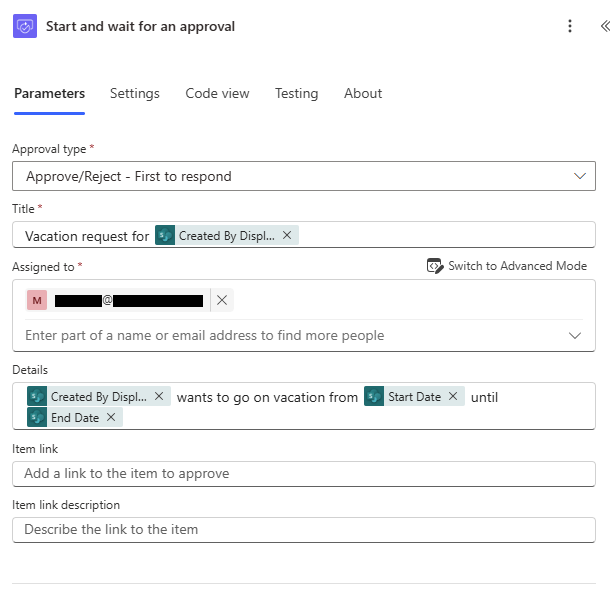
3. The approval action, assigned conditionally
Both branches use the same Approvals action, just with a different assignee. Keeping the approval step identical across branches (instead of duplicating separate approval logic per branch) is deliberate. When both branches later need a third field on the approval card, you change it once.
4. Checking before you assign, not after
The approval and escalation steps as built so far are honest but passive: assign the approval, start a clock, react if nobody answers. A version that's had a few more iterations checks something first, before the approval task even gets created: is the person about to be assigned actually around.
Two Office 365 actions do the actual work. Office 365 Outlook → Get mail tips for a mailbox (V2) returns the intended approver's automatic reply message, if one's currently set. Office 365 Users → Get manager (V2) resolves that person's manager dynamically, instead of a second hardcoded name sitting next to the first one.
The logic sits between step 3 and the approval task itself: work out who the approver should be (finance director or manager, from the threshold branch), pull their mail tips, and if an automatic reply message comes back, assign the approval to their manager instead, with a note on the approval card explaining why it was rerouted so nobody's confused when the wrong name shows up.
It's worth being as honest about the limits of this as the rest of the flow. It only catches people who've actually turned an auto-reply on, which is far from everyone. It doesn't help if the manager is also out. And it's an extra connector call on every single approval: a fine trade for something this frequent, but worth knowing you're paying it. A stored "backup approver" field that someone maintains deliberately is more reliable than inferring availability from a mailbox setting, slower to build, but it doesn't depend on people remembering to turn something on before they leave.
View as Mermaid (copyable)
flowchart LR
    A[Approver identified] --> B{Auto-reply on?}
    B -->|yes| C[Reroute to their manager, with a note]
    B -->|no| D[Assign as planned]
5. The escalation, running in parallel
This is the part people build second, if they build it at all. A delay runs alongside the approval wait. If the delay finishes first, the flow sends a reminder rather than a decision, and restarts the wait. This is a race-condition pattern, not a branch off the approval: the approval task and the delay run at the same time, and whichever finishes first decides what happens next.
Auto-approving after a timeout is tempting because it "unblocks" things, but it quietly moves the approval authority from a person to a clock. A reminder keeps the decision where it belongs and just makes silence louder.
View as Mermaid (copyable)
flowchart TD
    A[Approval assigned] --> B[Approver responds first]
    A --> C[Delay finishes first]
    B --> D[Outcome recorded]
    C --> E[Send reminder]
    E --> A
6. Outcome handling
Approved and rejected both do the same two things: update the Dataverse row's status field, and notify the submitter. The only difference is the message and whether a rejection reason gets attached. Two near-identical branches doing almost the same thing is a normal, honest shape for a flow. Don't over-engineer it into one clever branch just to avoid repetition.
Where flows like this quietly break
- The approver is out, and nobody turned on automatic replies. The out-of-office check only catches people who've actually set an auto-reply. If they haven't, the escalation still reminds the same absent person, forever.
- The threshold is hardcoded. Finance changes the policy from $500 to $750 and now someone has to open the flow (not a settings table) to update it.
- Escalation reminds, but never re-routes. After the third reminder with no response, nothing hands the decision to someone else. A one-way escalation eventually becomes a stuck flow.
- The rejection path is thinner than the approval path. It's common to see a rejection notification with no reason field required, which means the submitter gets a "no" with nothing to act on.
- No audit trail beyond the approval history. If the Dataverse row's status changes outside the flow (a direct edit, a data fix), the flow's approval record and the record's actual status can silently disagree.
None of these are exotic failures. They're the ordinary ways an approval flow drifts from what it was supposed to guarantee, and they're exactly the kind of thing that's obvious in five minutes to whoever built the flow and invisible to whoever inherits it.
If you inherited this flow
Before you read the list below, it's worth answering it yourself first: if you inherited this flow tomorrow, what's the first thing you'd check? Hold that answer, then see how it compares.
Five things worth checking in the first sitting, before you change anything: who's hardcoded as an approver and whether they still hold that role, whether the threshold value lives in the flow or somewhere it can be changed without editing logic, what happens after the second and third reminder (not just the first), whether rejection actually captures a reason, and whether the record's status can drift from the approval history. Every one of those is a five-minute check that saves someone a bad afternoon later.
← Back to FlowNarrate